How to Use the SuperDOM?
SuperDOM Module - KGI Crusoe platform The SuperDOM module can be launched from the New (+) menu in the KGI Crusoe platform.
Published
Topic
Orders & Positions
The SuperDOM module can be launched from the New (+) menu in the KGI Crusoe platform. DOM stands for Depth of Market, and the SuperDOM provides a live view of Level II market data while also serving as an order entry window for trading in your selected market.
Table of Contents
Setting up and Configuring your SuperDOM
Placing Market Orders
Placing Limit Orders
Placing Stop Orders
Setting up and configuring your SuperDOM
Accessing the SuperDOM Settings menu
To view and configure the settings of your SuperDOM in KGI Crusoe platform, locate the gear icon at the top right of the DOM module:

Click “Settings” in the drop-down menu to bring up the SuperDOM Settings:

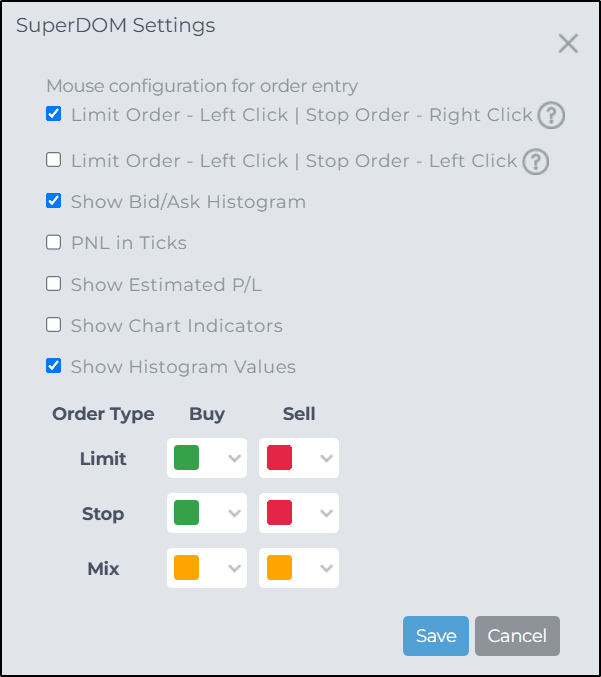
From the menu that appears, you can configure your SuperDOM:
Setting | Description |
|---|---|
Mouse Configuration for Order Entry | This allows you to configure which buttons on your mouse take actions with placing orders. |
Show Bid / Ask Histogram | This toggles the display of the Histogram if you have Order Flow+ enabled in your account. |
PNL in Ticks | This allows you to see profit and loss displayed as tick values or dollars. |
Show Estimated P / L | This will display estimated profit and loss at various levels within your SuperDOM. |
Show Chart Indicators | When this is checked on, hovering over the indicator name on the DOM will tell you which chart it is displaying, if you have multiple charts open for the same product with multiple time frames. |
Placing Market Orders
To place a market order in the SuperDOM on KGI Crusoe platform, click the Buy Mkt or Sell Mkt buttons at the top of the module.
Buy Mkt places a market order to buy
Sell Mkt places a market order to sell

Closing an Open Position
Clicking the Close button in the SuperDOM will submit market orders to offset any active positions and cancel any working orders for the currently loaded instrument. Please note that this action affects only the instrument currently displayed in the SuperDOM.
Placing Limit Orders
To place a limit order in the SuperDOM, find your desired price level and:
Left-click on the left side below the current market price to place a Buy Limit order
Left-click on the right side above the current price to place a Sell Limit order
If Order Confirmations are enabled, you'll be prompted to confirm before the order is submitted. If they are not enabled, the order is sent to the exchange immediately upon clicking.
Important:
Buy limit orders must be placed below the current market price
Sell limit orders must be placed above the current market price
Placing Stop Orders
To place a Stop order in the SuperDOM, simply right-click in the bid or ask column at your desired price.
If Order Confirmations are enabled, you'll be prompted to confirm before the order is submitted. If they are not enabled, the order will be sent to the exchange immediately upon your click.
Configuring the Default Stop Type in the SuperDOM
The default Stop Type in the KGI Crusoe platform is a Stop Market order. To customize your default Stop Type, click the gear icon at the top right corner of the SuperDOM and select Stop Type from the dropdown.
The available Stop Types include:
Stop (Market)
Stop Limit
Trailing Stop
Trailing Stop Limit
