How to Hide Order and Fill Info on Charts?
Hide Order Info on Charts - KGI Crusoe platform Fill Plotting allows you to customize the visibility of all working orders and past order fills on your Charts in the KGI Crusoe platform.
Published
Topic
Charts & Indicators
Fill Plotting allows you to customize the visibility of all working orders and past order fills on your Charts in the KGI Crusoe platform.
Table of Contents
Toggling Fill Plotting
Customizing Fill Plotting Appearance
Toggling Fill Plotting
To show or hide order information in your charts, follow the steps below:
Step 1
First, click the Chart Settings button that appears when hovering your mouse over the Chart. From this dropdown, select Fills and Orders.

In the Fills and Orders menu, you can choose whether to display the following order information on your Charts:
Setting | Description |
|---|---|
Show Orders | Displays all working (pending) orders on the right side of the chart. |
Show Order Lines | When "Show Orders" is enabled, this adds a horizontal line across the chart at each pending order's price level. |
Show Fills | Shows small icons at each fill location, with green for buy orders and red for sell orders. |
Show Trade Lines | Draws lines connecting entry and exit points. Green lines represent winning trades; red lines indicate losing trades. |
Show All | Enables all order-related visual elements on the chart. |
Hide All | Disables all order-related visuals, hiding all order information from the chart. |
The example screenshot below includes some past order information with Show All enabled in the Fills and Orders menu.

Customizing Fill Plotting Appearance
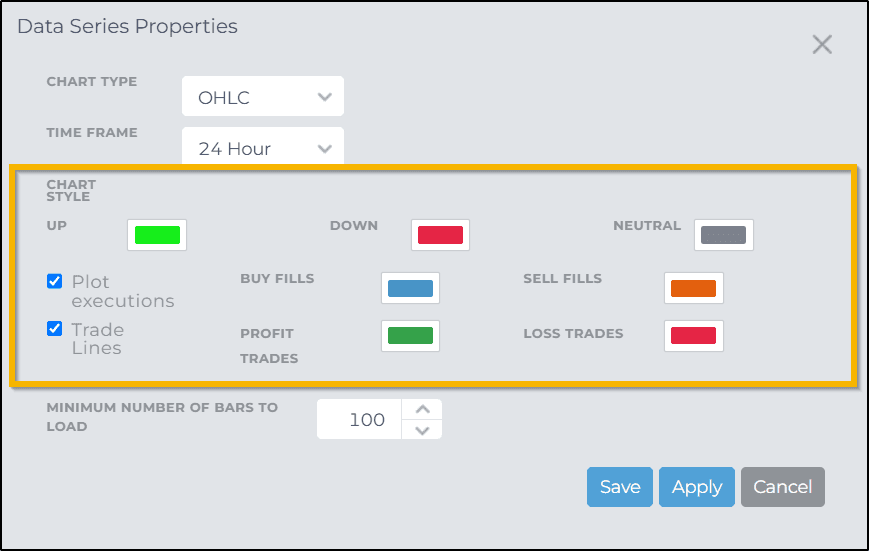
To customize how order lines and fills appear on your chart, hover your cursor over the chart and click the Configure icon that appears. From the dropdown, select the Contract (Instrument) displayed in your Chart.

This opens the Data Series Properties window, where you can toggle the visibility of Plot Executions (past trades) and Trade Lines (working orders). You can also customize the colors for Buy Fills, Sell Fills, Profitable Trades, and Losing Trades.